 English

Views: 0 Author: Site Editor Publish Time: 2026-11-01 Origin: Site


Experiencing an EZCAD2 control card not detected error brings laser marking production to an immediate halt. You launch your software, expecting to load your templates, but it suddenly forces you into a restricted Demo Mode. This prevents you from executing any jobs, saving files, or adjusting crucial laser parameters. Every minute of downtime impacts your production schedule. Why does this happen out of nowhere? This issue rarely stems from a random software glitch. Instead, it systematically traces back to Windows security updates rejecting unsigned drivers, controller software mismatches, or physical hardware degradation. A broken communication link between your workstation and the internal laser board is the core problem. Our goal is to provide a structured diagnostic framework. You will learn to isolate whether the failure is software-driven, such as an OS conflict, or hardware-driven, like a failed LMC board. By following these steps, you can confidently restore production or justify a necessary hardware replacement.
Symptom Isolation: The software forcing "Demo Mode" is the primary indicator of a communication failure between Windows, the driver, and the BJJCZ board.
Windows Update Conflicts: Recent Windows 10 and 11 security updates routinely block legacy EZCAD2 drivers, requiring manual driver signature enforcement overrides.
Version Matching: EZCAD2 software versions must precisely align with the specific hardware revision of the control board (e.g., LMCV4 vs. V1).
Hardware vs. Software: Consistent "Unknown USB Device" errors in the Device Manager, even after cable replacement, typically indicate a degraded control card requiring replacement.
Understanding how the system fails helps us apply the correct fix. We must clearly define the failure state before changing any settings.
When EZCAD2 launches without establishing a successful board communication link, it triggers a failsafe. You lose all access to specific laser parameters. The marking functions become grayed out. An immediate "Demo Mode" popup appears on your screen. In this state, the software acts strictly as a file viewer. You cannot fire the laser, test the red dot pointer, or send any vector data to the galvo head. The software cannot verify the hardware dongle built into the BJJCZ board.
Your next step requires checking how Windows sees the hardware. You must open the Windows Device Manager to locate the laser machine. Press the Windows key, type "Device Manager," and open the utility. Scroll down and expand the "Universal Serial Bus controllers" section. Sometimes, the laser board appears under "Other devices." You need to look for specific error codes. Search for devices displaying a yellow warning triangle. You might see names like "Unknown Device" or "Unknown USB Device (Device descriptor request failed)." These errors confirm Windows detects physical hardware plugged into the USB port, but it cannot communicate properly.
Before you start altering software versions or downloading new patches, you must define the baseline success criteria. The BJJCZ board must show a solid, error-free connection status in Device Manager. It usually appears as "BJJCZ Device" or "Laser Mark Control Board." EZCAD2 cannot successfully initialize until this Device Manager entry shows a healthy status. This is your primary diagnostic checkpoint.
You cannot mix and match laser hardware and software randomly. The physical control board dictates which software version you must use.
You must physically identify your BJJCZ control board version before proceeding. Open the cabinet or housing of your laser marker. Look directly at the main green circuit board (PCB). Locate the white silkscreen text printed on the board surface. You will usually find identifiers like "Laser Mark Control Board V1", "LMCV4-FIBER-M", or "FBLI-B". Write this exact model number down. This physical identifier is the key to solving BJJCZ controller software compatibility issues.
Board Silkscreen Identifier | Typical Application | Compatible Software Range | Driver Requirement |
|---|---|---|---|
LMCV4-FIBER-M | Standard Fiber Laser Markers | EZCAD 2.14.9 to 2.14.11 | 64-bit signed/unsigned (OS dependent) |
Laser Mark Control Board V1 | Legacy / Early Fiber Models | EZCAD 2.12.x series | Requires strict legacy driver |
FBLI-B / SZLI-B | Specialty / High-Speed Systems | EZCAD 2.14.10+ | OEM specific driver package |
Using mismatched EZCAD software versions causes severe operational risks. If you pair a legacy V1 board with a newer 2.14.11 software release, it will likely fail to connect. In some cases, it connects but fails to trigger the laser source properly. Upgrading EZCAD2 to the "latest version" found online often breaks functionality. The firmware embedded on older legacy boards does not support the newer software commands. You must use the exact software version shipped on the USB drive provided by your manufacturer.
Avoid generic downloads from third-party forums. You must use the specific driver package provided by your original machine manufacturer. Companies like Thunder Laser, Wisely Laser, and Rayfine often patch their software folders. They configure the I/O pin settings for their specific hardware builds. A generic driver might load successfully in Windows, but it could map the rotary axis or foot pedal incorrectly. Stick to the OEM files.
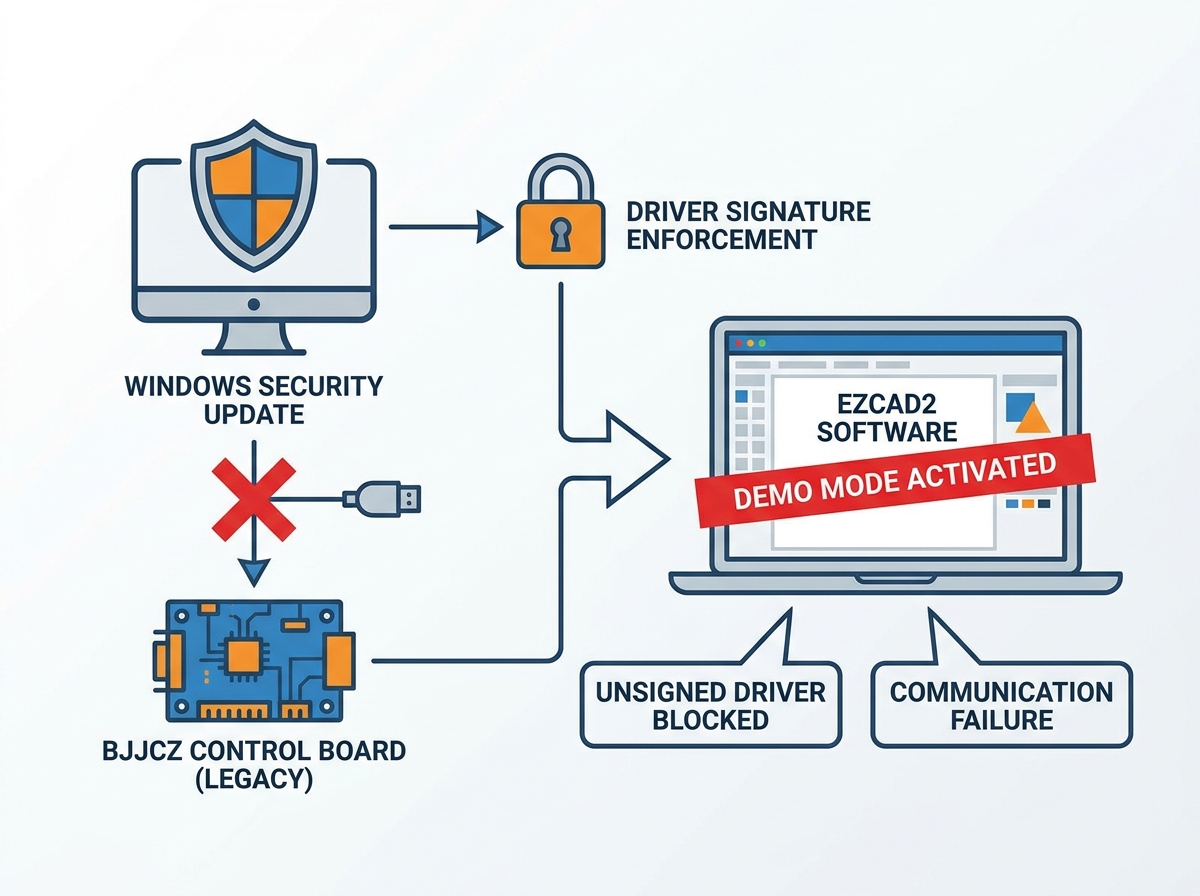
If your laser worked perfectly yesterday but fails today, a background OS update is the most likely culprit. Proper EZCAD2 driver troubleshooting requires understanding how modern operating systems handle legacy files.
The "control card not detected" error frequently appears suddenly after a PC reboot. The technical reality behind this involves strict Windows 10 and 11 enforcement policies. Microsoft actively blocks unsigned or legacy drivers to prevent malware. Modern Windows features like Core Isolation and Memory Integrity automatically quarantine the older `.sys` files required by the BJJCZ board. The operating system silently uninstalls the working driver and replaces it with a generic USB error state.
To bypass this security block, you must boot Windows into an advanced recovery mode. This temporary override allows you to install the driver. Follow this required sequence:
Click the Windows Start menu.
Hold down the Shift key on your keyboard.
Click the Power icon and select Restart while keeping the Shift key pressed.
Your PC will reboot into a blue menu screen.
Navigate through Troubleshoot > Advanced Options > Startup Settings.
Click the Restart button on the screen.
When the system boots back up, it displays a numbered list. Press the F7 key (or number 7) to select "Disable driver signature enforcement."
Windows will now boot normally, but it will allow you to manually load the EZCAD2 driver files without security rejections.
Continuously repeating the advanced startup process wastes valuable production time. You should consider the viability of isolating a dedicated laser workstation. Disconnecting the laser PC from the internet prevents automatic Windows updates entirely. This maintains operational stability for legacy hardware. While this poses network security risks for general web browsing, an air-gapped PC dedicated solely to laser marking provides the highest level of uptime reliability.
Once you disable signature enforcement, you can push the correct driver to the board. This manual process ensures Windows uses the exact files from your software folder.
Begin by completely uninstalling existing corrupted driver profiles. Open Device Manager, right-click the "Unknown Device" or malfunctioning laser device, and click "Uninstall device." If a checkbox asks to "Attempt to remove the driver for this device," check it. Next, verify your physical connection. Plug the USB cable directly into the rear motherboard I/O ports of your PC. Avoid using front-panel USB ports, USB extensions, or external docking hubs. Hubs frequently drop data packets, causing intermittent Demo Mode errors.
Keep the laser machine powered on and connected via USB.
Open Device Manager. Right-click the unrecognized USB device and select Update driver.
Click Browse my computer for drivers. Do not let Windows search automatically.
Click the Browse button.
Navigate to your main EZCAD2 software directory. Inside, locate the folder named lmc_driver (or x64 if you are running a 64-bit operating system).
Select this folder, click OK, and then click Next.
Windows might pop up a red warning box asking if you want to install this unverified driver. Click "Install this driver software anyway."
Watch the Device Manager screen refresh. The warning icon should disappear. The list should now categorize the hardware correctly as a "BJJCZ Device" or "Laser Mark Control Board" under the USB controllers section. Open your EZCAD2 software. The loading screen will pass smoothly. You will see your normal workspace grid. The Demo Mode prompt will be entirely absent, confirming the communication bridge is fully restored.
If software overrides fail to resolve the issue, you must evaluate the physical hardware. Control boards operate in harsh, dusty environments and eventually degrade.
Before condemning the board, you must test the peripheral variables. Swap the USB A-to-B cable (standard printer cable) with a brand new, high-quality data cable. Faulty shielding inside old cables frequently causes data drops. Move the cable to a different USB port on your computer. Finally, test the laser machine on a secondary laptop. If the secondary laptop also reads "Unknown USB Device" or fails to detect the hardware entirely, you can confidently rule out the primary PC's operating system as the culprit.
You must check the internal machine components next. Power down the laser and open the side panels. First, observe the diagnostic LEDs on the BJJCZ card while powering the machine back up. A healthy board typically displays solid or blinking indicator lights indicating power and data flow. If the board is completely dark, you have a power issue. Use a digital multimeter to verify the 5V power supply. Place your probes on the power input terminals of the control board. You should read a steady 5.0 to 5.2 volts DC. If the multimeter shows zero volts, or fluctuates wildly, your 5V power supply unit failed, not the control board itself. Replacing a cheap power supply often resurrects a seemingly dead system.
If you confirm proper 5V power reaches the board, but the LEDs remain dead and PCs refuse to recognize the device, the hardware failure is confirmed. You must outline a decision criteria for replacement. Consider buying a direct 1:1 legacy replacement board. This is the fastest route to recovery. A matching LMCV4 board requires zero software changes. You swap the wires, and production resumes immediately. Alternatively, you might consider upgrading to a newer controller ecosystem, such as a LightBurn-compatible DSP. Upgrading provides better software features but requires complete rewiring, extensive setting calibration, and longer downtime. Evaluate your downtime costs and future software needs before making this decision.
Resolving communication failures requires a logical troubleshooting hierarchy. You should always verify physical USB connections and 5V power first. Next, align your software compatibility by ensuring your EZCAD version matches your physical board revision. If those factors align, override Windows driver restrictions using advanced startup modes, and manually force the driver installation from your OEM folder. Resolving these compatibility issues requires strict adherence to OEM documentation. Trial-and-error software updates usually worsen the problem. Downloading random versions from the internet introduces variables you cannot control. Once you establish a working setup, back up the entire working EZCAD2 folder to an external flash drive. Document your working driver versions and OS states. This simple habit prevents massive future downtime the next time a system update attempts to disrupt your production floor.
A: Demo Mode is the software's default fallback state. It activates when the application cannot detect an authorized BJJCZ control board via the USB connection. This usually happens due to a missing driver, a blocked driver from Windows security, or a physically disconnected USB cable.
A: Yes. Modern Windows updates frequently include Core Isolation and strict driver signature enforcement protocols. These background security updates routinely quarantine legacy laser controller drivers because they lack modern digital signatures, instantly breaking your machine's connection.
A: A dead board typically exhibits no indicator lights upon power-up. It will fail to register in Device Manager across multiple different computers and cables. If you confirm the board receives appropriate 5V DC power from the power supply but outputs no data, the board requires replacement.
A: Windows 11 uses the same core driver architecture as Windows 10, meaning the standard 64-bit LMC driver works. However, Windows 11 enforces even stricter default security protocols. You almost always have to perform a manual bypass of driver signature enforcement to install it successfully.
